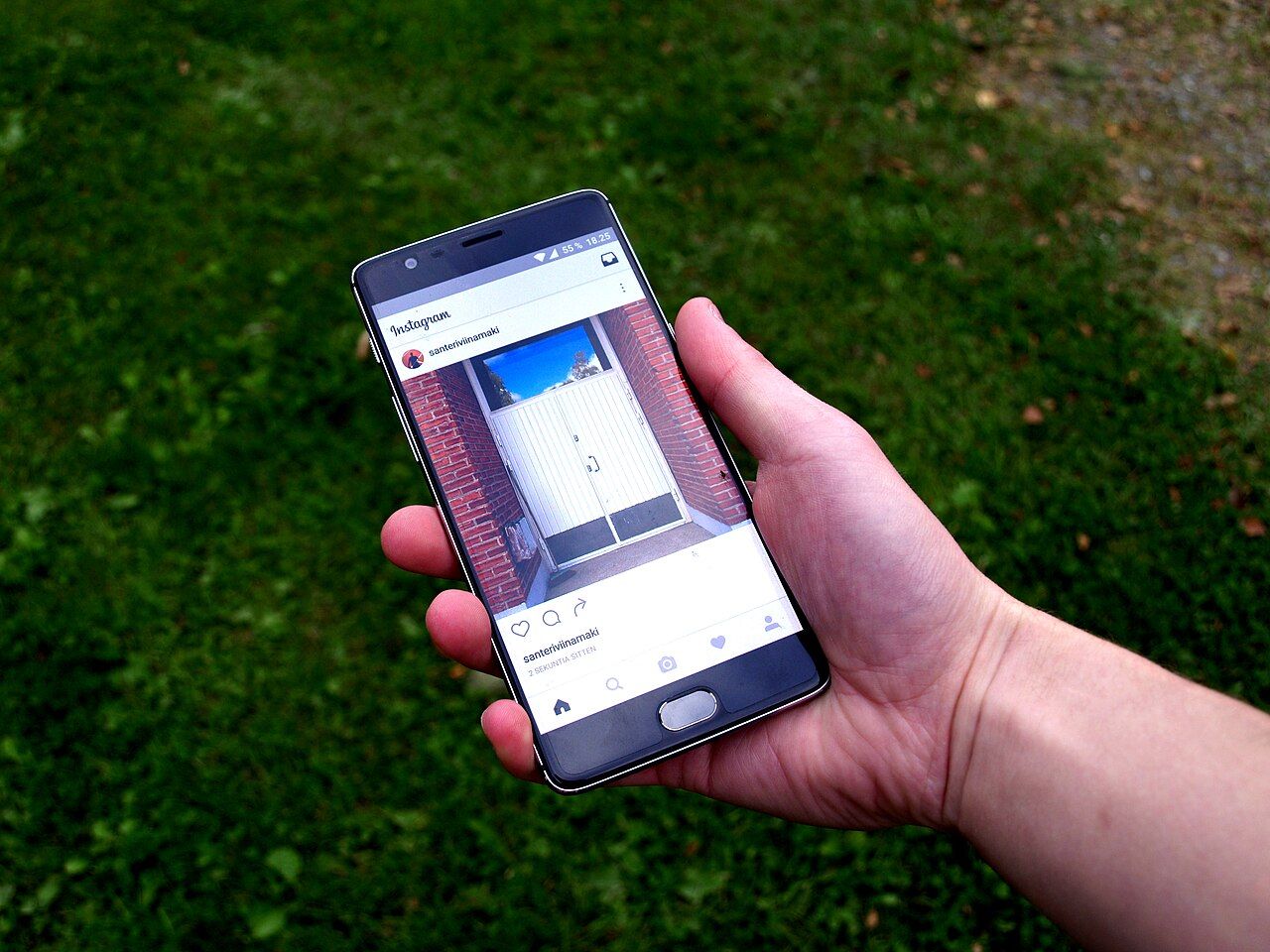
The Instagram Edits carousel editor lets creators build a multi-slide post from photos, video and text, then share it to Instagram. Meta announced the feature on October 7, 2026, U.S. time. Its October 8 Japanese newsroom notice says carousel creation is available on iOS, with Android support coming soon; it does not give an Android release date.
This is a new editing workflow for an existing Instagram format. It is useful when a post needs a sequence of images with a consistent design, rather than a single finished video.
How to use the Instagram Edits carousel editor
Meta’s official instructions describe this path:
- Open Edits and go to Projects.
- Tap +, then choose Carousel.
- Select the photos or videos for the post.
- Arrange the media on the canvas and add your edits.
- Share the finished carousel to Instagram.
The documented tools include text, filters, adjustments and cutouts. Meta also describes slide reordering, preset layouts and saved styles. Check the operating-system limitation before planning a deadline around this feature: the announcement does not establish that every Android user has access.
What changes compared with a simple photo sequence?
PetaPixel’s October 7 report explains that the editor can carry a picture or headline across slides, with controls for positioning, rotation and color grading. It also reports that creators can download the finished carousel instead of immediately posting it.
That gives photographers a way to combine a finished image, a close-up and a short behind-the-scenes clip in one designed story. For an educational creator, the same format could introduce a question, show the evidence and finish with an answer. These are suggested uses, not templates or performance claims supplied by Instagram.
A practical first project: make each slide stand on its own
Start with a short outline before opening the editor. Give the first slide a clear reason to swipe; assign one point to each following slide; reserve the final slide for the takeaway. A continuous background can tie the design together, but important information should remain readable without needing to see two slides simultaneously.
Preview the sequence on a phone. Check text size, contrast, the order of the argument and whether a video needs on-screen context. If a slide contains a source quotation or a numerical claim, include attribution where the reader encounters it. Editing software helps arrange the material; it does not verify its accuracy or grant permission to use somebody else’s media.
A five-slide carousel plan you can adapt
Editorial example: the outline below is a suggested workflow, not a tested campaign or a promise of better reach. Use your own photographs, footage and wording.
| Slide | Purpose | Example for a creator sharing a project |
|---|---|---|
| 1 | State the question | Show the finished project and explain what readers will learn. |
| 2 | Establish the starting point | Use your original before photograph and identify the problem you wanted to solve. |
| 3 | Explain one decision | Combine a detail photograph with a short explanation of a material, tool or editing choice. |
| 4 | Show the process | Add a short clip with on-screen context so it remains understandable without sound. |
| 5 | Give a usable takeaway | Summarize what you would repeat or change and invite a specific question. |
This structure gives each slide a job. A decorative collage may suit a visual portfolio; a step-by-step sequence may suit a tutorial. Choose the layout that helps readers understand the material rather than adding effects simply because the editor offers them.
A checklist before you share
- Read every slide at normal phone size. Shorten text that needs zooming, and keep important words away from edges.
- Check the sequence. A slide should make sense on its own and connect to the next one. Avoid splitting an essential sentence across slides.
- Keep the evidence visible. Identify dates, units and sources for factual claims. Distinguish your observations from general advice.
- Check reuse rights. Use your own assets or material whose licence permits your intended use; attribution alone does not grant permission.
- Preview video without sound. Add context where audio carries information, and avoid claiming an outcome that the footage does not establish.
- Review the published result. Check cropping and readability after sharing. Evaluate your own audience response without treating one post as proof of a general algorithm advantage.
What the announcement does not promise
The update does not establish a guaranteed reach boost, additional earnings or an Android launch day. Treat it as a production option and evaluate whether it improves the clarity of your own posts.
For the app’s separate generative editing features, see our Instagram Edits AI-assistant guide. Creators working with sponsors can also read our Instagram Live partnership-ads explainer.