Twitch Stream Recaps let creators assemble clips from a completed broadcast into a short highlight reel that followers can watch from the mobile app’s Recaps shelf or the creator’s channel page. Twitch suggests clips automatically, but the creator controls what is added, removed, edited and ultimately published.
What are Twitch Stream Recaps?
A Stream Recap is a collection of clips from one livestream, arranged so followers can catch up in a few minutes. Twitch announced the feature on October 20, 2026, describing it as a way to keep communities connected after a broadcast ends.
This is not the same as the annual Twitch Recap, which summarizes a viewer’s or streamer’s activity across a year. Stream Recaps are tied to individual broadcasts and can be created repeatedly after streams.
How to create a Twitch Stream Recap
- Finish a livestream, then open its Stream Summary. Creators can also tap the plus button in the Twitch mobile app.
- Review the clips Twitch has placed in the draft Recap. Clips made by the streamer and their editors are included by default.
- Remove clips that do not fit, add other clips from the broadcast and adjust their order.
- Fine-tune individual clips by cropping them, editing captions or changing the layout.
- Publish the finished Recap for followers to watch.
The official instructions make an important point: Twitch helps identify and assemble material, but the creator remains responsible for the final selection. A suggested clip does not have to be published.
Where do viewers find Stream Recaps?
Followers can see a creator’s Recap in a shelf at the top of the Twitch mobile feed. Twitch also places the Recap on the creator’s channel page, so it is not limited to people who notice it immediately in the feed.
An independent SocialDay analysis reports that Recaps can also surface through Stories and Live-feed cards. That coverage says Story placement lasts 48 hours, while Twitch’s own announcement confirms the longer-lived channel-page location. The difference matters: feed visibility is temporary, but the channel page gives visitors another route to the recap.
Can streamers add clips while they are live?
Yes. Saying “Twitch Clip That” during a broadcast creates a clip and automatically adds it to the current Recap draft. The streamer can still review and edit that clip after the broadcast before sharing the final reel.
The voice command is useful for creators who want to mark an important moment without stopping the stream. Editors can also make clips during the broadcast, and those clips are included by default for later review.
What Stream Recaps change for creators
Livestreams create a timing problem: even loyal followers cannot attend every broadcast or stay for every hour. A short recap gives creators a native way to resurface strong moments after going offline instead of relying entirely on viewers discovering isolated clips.
For sponsored streams, that could extend the life of a branded moment—but creators should not assume every sponsorship can be republished automatically. Contract terms, disclosure requirements and usage rights still apply. A sponsor’s approval for a live integration does not necessarily grant permission to reuse the same segment in every later format.
Will Twitch promote Stream Recap clips elsewhere?
Twitch says it plans to offer a promotion opportunity later in October for clips shared in Stream Recaps. The company says selected material may be promoted on third-party social media to help streamers reach audiences beyond Twitch.
Full eligibility, selection and consent details were not included in the launch post. Creators should wait for the promised documentation before treating external promotion as guaranteed or assuming that every Recap will qualify.
What creators should check before publishing
- Confirm that each clip represents the stream accurately and does not remove important context.
- Review captions, crops and vertical layouts before publishing to mobile viewers.
- Check sponsor agreements before including paid segments in a Recap.
- Remove clips containing copyrighted music or other material that may create reuse problems.
- Do not confuse a Stream Recap with the annual personalized Twitch Recap.
Stream Recaps arrive as Twitch continues investing in discovery and community tools around major creator events. For more platform context, see our guide to the TwitchCon San Diego 2026 schedule and our explanation of Streamer Awards 2026 voting.
The bottom line
Twitch Stream Recaps are creator-controlled highlight reels for individual broadcasts. Twitch suggests clips and gives them prominent mobile placement, but streamers choose the final content. The feature is most useful as a catch-up tool between broadcasts—not as a replacement for full VODs, individual clips or the annual Twitch Recap.
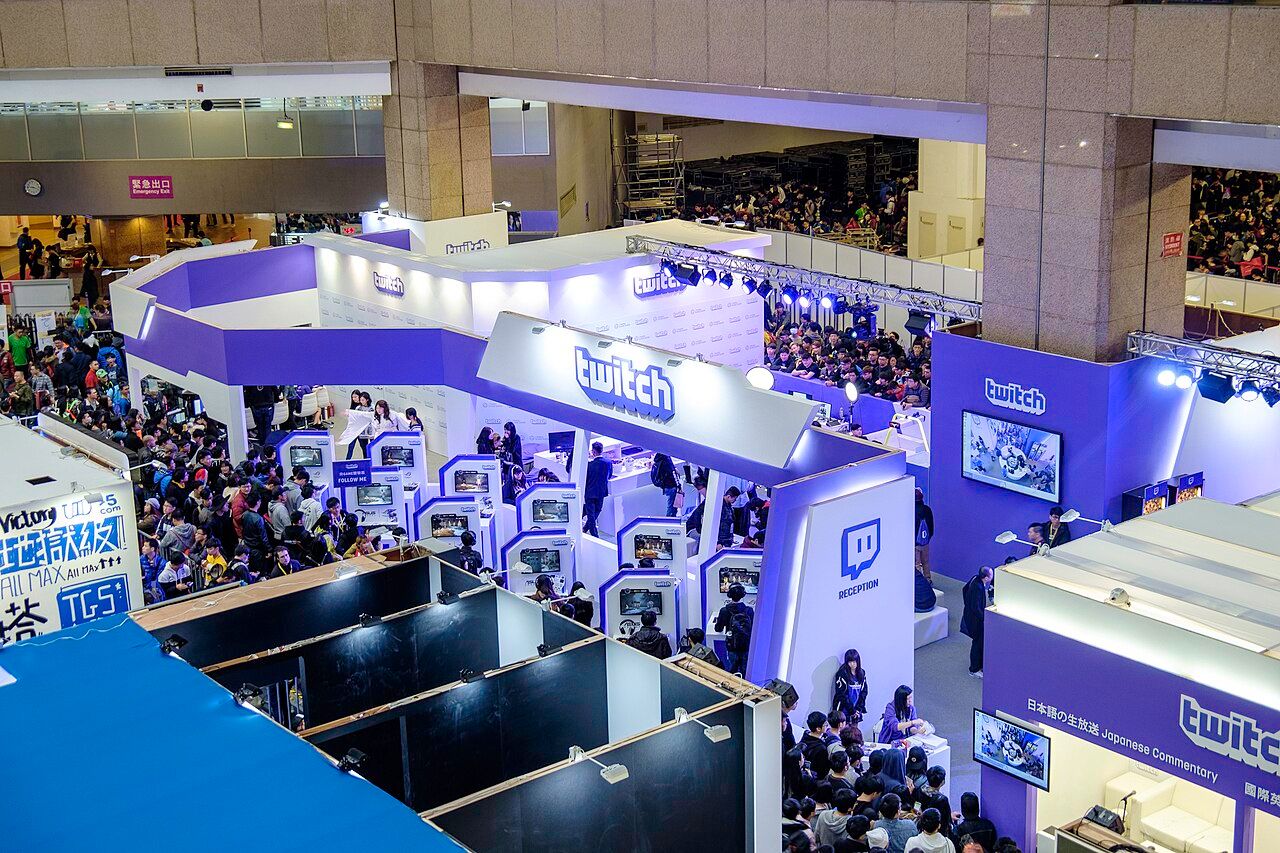
Featured image: archival photograph of the Twitch booth at Taipei Game Show on January 24, 2017. Photo by 玄史生 / Wikimedia Commons, dedicated under CC0 1.0. Resized to 1280 × 853 pixels; no other changes. The image does not show the 2026 Stream Recaps interface.